Setup guide
Get every shot,
in light.
Start to finish, plan on about an evening: a bit of hardware wiring and mounting, then the SimLight Golf app does the rest. This guide bakes in the small gotchas our beta testers hit so you can skip straight past them. Already have your hardware mounted and wired? Jump to step 3.
Step 1
Get your hardware together.
You'll need four things: a small WLED-compatible controller, an addressable LED strip (as much as your total install needs, from one strip over the screen to a full bay surround), a power supply, and a diffuser to soften the strip into a smooth glow.
The What you need section on the home page links every piece we use, including the diffuser breakdown, so you can match it exactly or pick equivalents. Remember, we recommend what we know works but feel free to try out different stuff at your own risk!
Lighting more than the top? A full bay surround (left, top, and right) uses the same parts, just more strip and potentially some additional wire and connector clips. See the surround guide for sizing and wiring, or the setup quiz for a ready-made parts list.
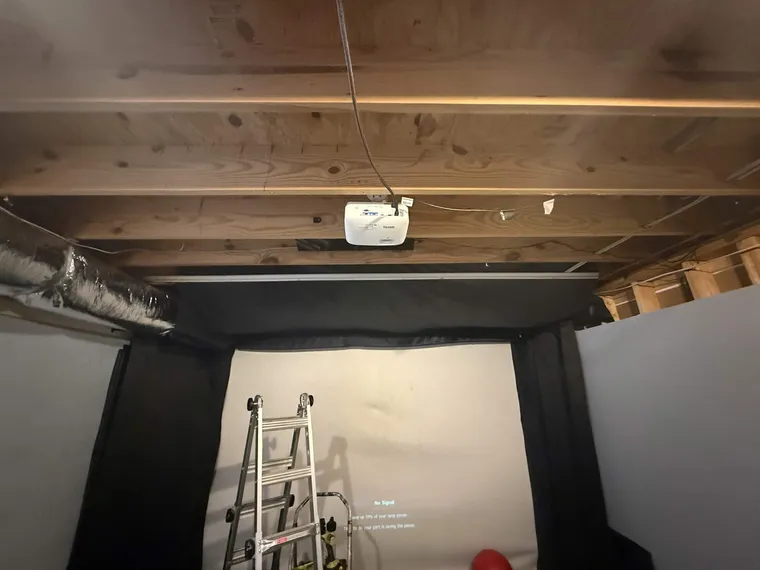
Step 2
Wire it up, and bench-test before you mount.
Wire everything on a table and run the app once before anything gets mounted or tape gets sticky. It separates "did I wire it right" from "did I mount it right", and it's the single biggest time-saver our testers found.
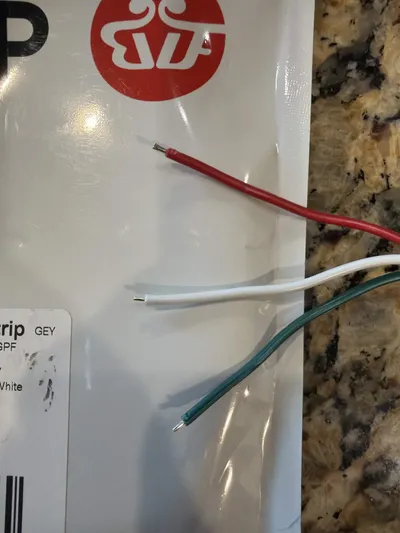
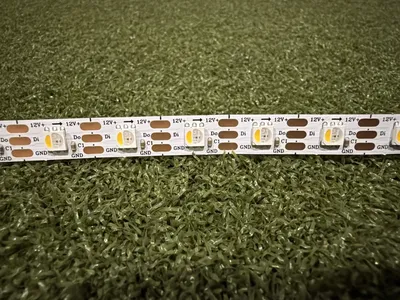
The one wire people get wrong: on the strip's connector, red is power,
white is ground, and green is the data wire, not ground, even though green
means ground almost everywhere else. The data wire goes to the controller's IO16
terminal.
Two small things that stop the strip working out of the box: the controller's terminal levers need to be pulled open before a wire will seat (pulling a lever only slightly does not open the terminal port for the wire; you have to pull harder than you think, and you'll feel a click when the lever springs the port open), and the strip and power-supply leads ship very short. Strip them back about ½ inch so they actually grip. The power supply comes with bare leads; the no-solder way to connect it to mains is a couple of WAGO lever connectors (in the UK, wire it onto a fused 3-pin plug).
This is normal, not a dead strip.
Don't worry if only the first section of the strip lights up when you power it on, or when you poke at it in the WLED phone app. The strip stays in its last saved state until SimLight Golf configures it in step 5. Nothing is broken, and no LEDs are dead.
Step 3
Install SimLight Golf.
Head to the download page and grab the latest installer. Our installers are code-signed, but because the app is new, Windows may still show a blue SmartScreen warning until it builds up a download history. Click More info → Run anyway. If your browser quarantines the file, allow it from Windows Security → Protection history, or try a different browser.
System check: Windows 10 or 11, 64-bit. SimLight Golf runs alongside GSPro, so you don't need a beefy machine, but you do need to be on the same local network as your WLED controller.
Step 4
Activate with your license key.
On first launch, SimLight Golf will ask for a license key. You'll get yours by email right after checkout, and if you came straight from the checkout page, it may already be filled in for you. Paste it in and you're good.
Step 5
Connect your strip and calibrate.
Inside the app, SimLight Golf walks you through connecting to your WLED controller. If it doesn't find the controller automatically, type its IP address in by hand. You'll find it in your router's client list or via the WLED phone app, which scans the local network.
The app then asks how many LEDs are on your strip. The easy way to work it out: the recommended strip is 300 LEDs, so subtract however many you cut off. SimLight Golf handles the rest: it sets a current limit and figures out which direction your strip points (the data arrows on the strip) so directional-specific effects show up the right way in your room. If a shot's direction ever reads backwards, there's a flip toggle in settings.
GSPro integration is automatic. As long as GSPro is running on the same machine, SimLight Golf will find it.
Step 6
Mount it.
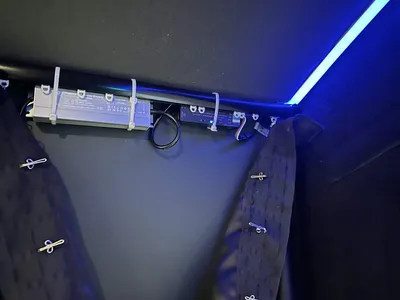
Mount the diffuser channel first, then peel and stick the strip onto a face of the diffuser (the flexible ones use pull strings) and snap the cover on. Counter-intuitively, the cover is far easier to clip in once the channel is mounted securely than on the floor. For the one we recommend, firm two-finger pressure running down both edges pops it in.
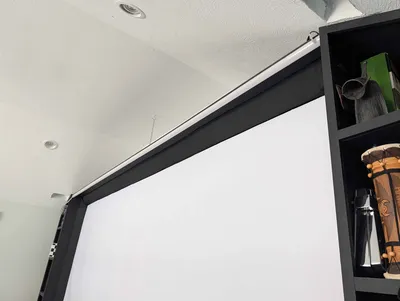
You can mount the strip wherever you want relative to your screen. Get creative. Pointing it ~45° down at the hitter is the brightest; straight-down or parallel along the ceiling is a softer, more ambient look. Make sure your power supply has proper ventilation, following its spec sheet.
Tuck the controller and power supply out of sight. There are really only two runs you might need to extend: from the wall outlet to the power supply, use a proper mains-rated extension cord; and from the controller to where the strip starts, use appropriately gauged low-voltage wire for the +12V and ground legs. The power supply and controller sit together, so there is nothing to extend between them. Keep the controller as close to the strip as possible to keep the data line short, and mind wire gauge, voltage drop, and the like.
Step 7
Hit a shot.
Drop into GSPro, swing, and watch the strip react in real time. From here it's all dialing-in: brightness, Clean vs Flashy mode, and shot-shape forgiveness are all adjustable in the app.
Troubleshooting
The lights don't react when I swing
First, confirm GSPro is logging the shot; if GSPro doesn't see it, neither will SimLight Golf. Second, make sure SimLight Golf and your WLED controller are on the same network (no guest Wi-Fi, no VLAN split). Third, open your WLED controller's IP in a browser and try the built-in color picker; if WLED itself can't drive the strip, the wiring is the issue, not the app.
SimLight Golf can't find my controller
Type the controller's IP address in manually. You can find it in your router's client list, or by opening the WLED phone app, which scans the local network. Make sure the controller and your PC are on the same network. Guest Wi-Fi and VLANs will hide one from the other.
Only part of my strip lights up
Almost always normal at first: the strip stays in its last WLED state until SimLight Golf configures it, so before setup you'll often see just the first section lit. Run the setup wizard and it comes to life. If a long run instead browns out toward the far end only during full-brightness effects, that's a power question, but at the recommended strip length and current limit you shouldn't see it.
Windows or my browser blocked the installer
The installer is code-signed, but new software still trips Windows' blue SmartScreen warning until it earns download reputation. Click More info → Run anyway. If your browser deleted or quarantined the file, open Windows Security → Virus & threat protection → Protection history, find SimLight Golf and choose Allow. If one browser keeps blocking it, another usually works.
My license key isn't accepted
Make sure you're copying the whole key without leading or trailing spaces. If it still won't activate, email support@simlightgolf.com with the email address you used at checkout and we'll sort it out.
Have your key? Grab the installer.
Go to downloadStill stuck? Ask in the SimLight Golf Discord or email support@simlightgolf.com.